
 Help Centre
How to manage and setup 2FA in a company
How to Manage Two-Factor Authentication (2FA)
This guide shows how administrators can enforce Two-Factor Authentication (2FA) policies for their company and how users can set up and manage their 2FA methods. 2FA adds an extra layer of security by requiring a second form of verification beyond just a password.
Access the Admin Panel
Go to the top-right corner of your app.
Click on your User Icon.
Select Admin Panel.
Note: If you don't see the Admin panel, you do not have the necessary permissions to manage these settings.
Administrator: Configuring 2FA Policies
Administrators can control who needs 2FA and which methods are allowed.
1. Set Enforcement Rules
In the Company Settings or Security section of the Admin Panel, you can define how 2FA is applied by toggling the Make 2fa Mandatory:
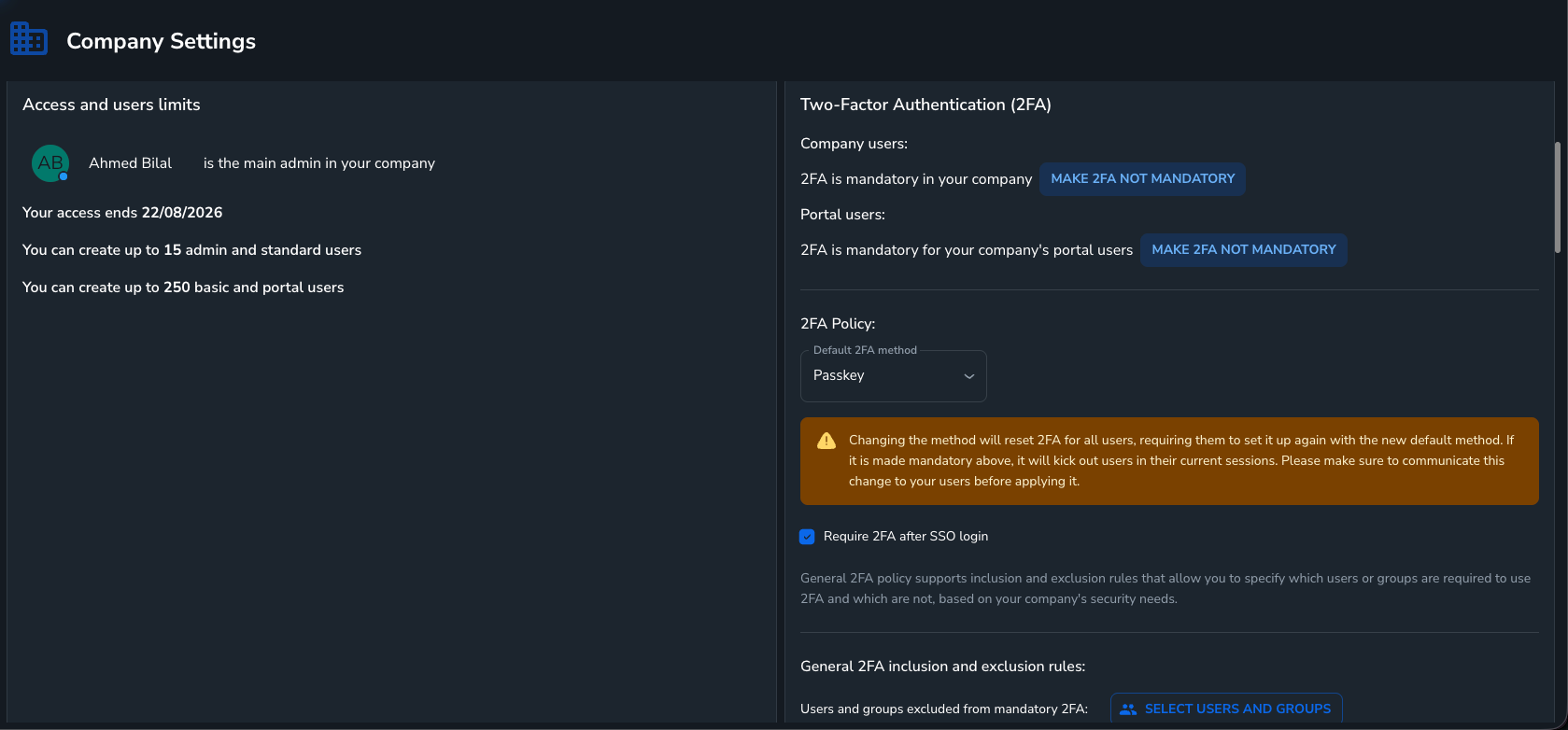
Mandatory Mode: 2FA is required for all users by default.
Exemptions: You can exclude specific users or groups in the exclusion policy below.
Note: Kiosk users are always exempt.
Not Mandatory Mode: 2FA is optional by default.
Enforcement: Only required for specific users or groups which you can add in the inclusion policy below. You can also set it up yourself in your profile settings.
2. Choose Default 2FA Method
Select the default method users will be prompted to set up. Supported methods include:
Authenticator App: TOTP codes (e.g., Google Authenticator, Microsoft Authenticator).
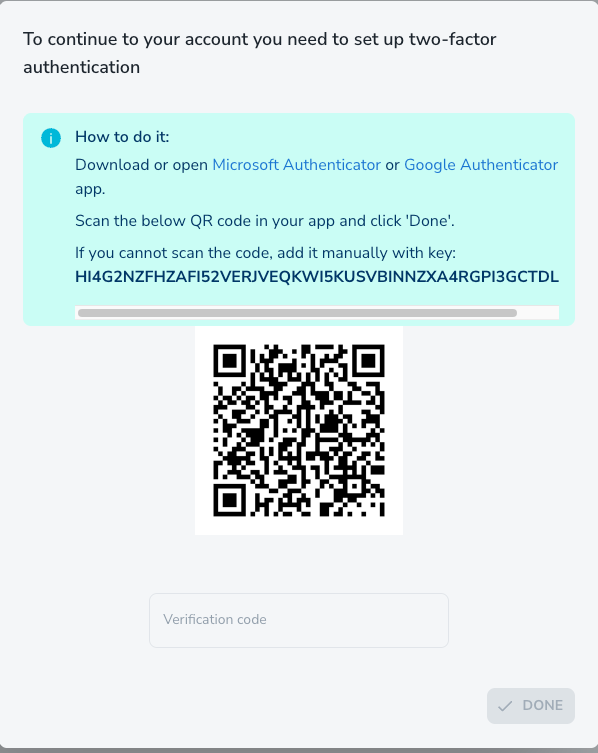
Scan the QR code with Microsoft or Google Authenticator, or enter the key manually to complete your 2FA setup. Passkeys: Biometric login (Touch ID, Face ID) or hardware keys (YubiKey).
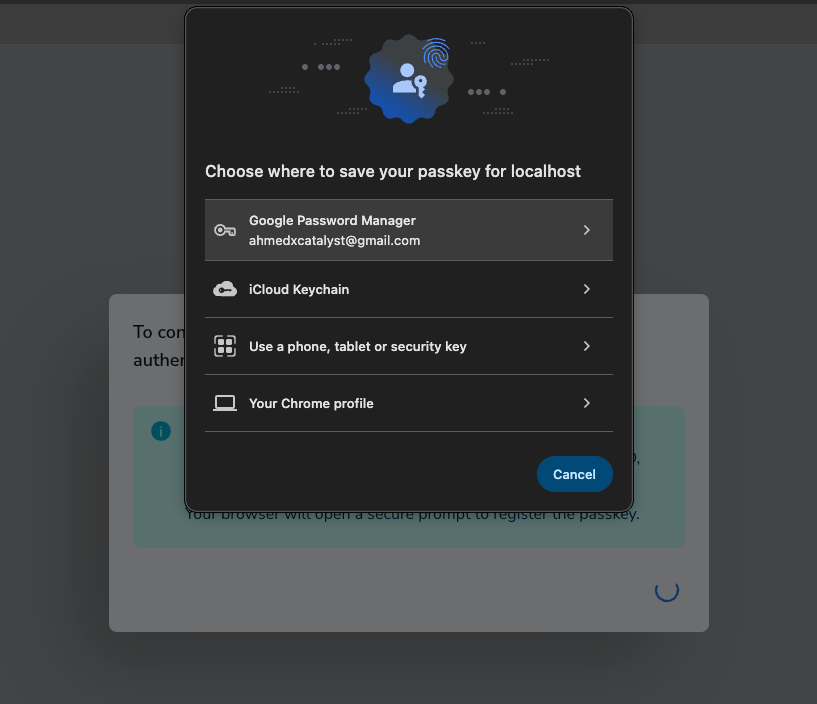
Users can select their preferred passkey storage method when setting up 2FA authentication. Email: A numeric code sent to the user’s email.
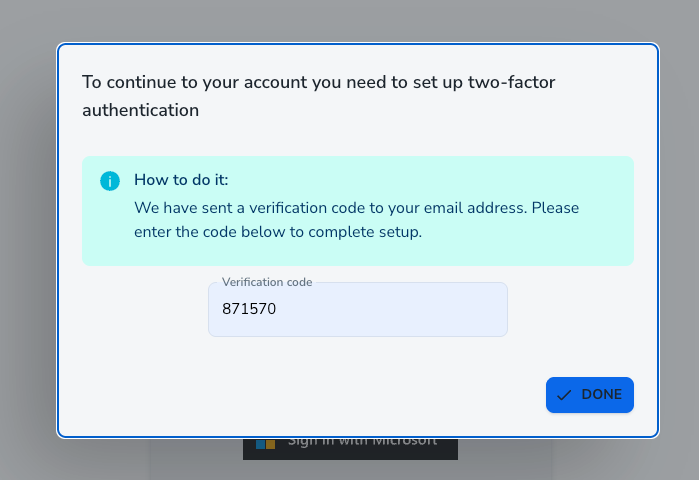
Enter the verification code sent to your email address to complete two-factor authentication setup. Authy(Deprecated): Push notifications via the Twilio Authy app.
3. SSO Integration
Require 2FA for SSO: Enable
Require 2fa after SSO Loginif you want users logging in via Microsoft or Google SSO to still complete a 2FA check.
⚠️ Important Notes for Admins
Changing Default Method: If you change the
Default 2fa method, the system will automatically reset 2FA setup for all users.Force Logout: Users currently logged in will be forcibly logged out and must re-login to set up the new method.
Default Admins: Default admins are excluded from force-logout operations during configuration changes to ensure system access is maintained.
User Guide: Setting Up & Using 2FA
A. First-Time Setup
If 2FA is required by your company policy but not yet set up, you will be prompted after logging in/signing up an account.
Log in with your password or SSO.
The Set up 2FA dialog will appear.
Follow the steps for your assigned method:
Authenticator: Scan the QR code with your app (Google/Microsoft Authenticator) and enter the 6-digit code.
Passkeys: Follow browser prompts to register Touch ID, Face ID, or a hardware key.
Email: Check your inbox for a 6-digit code and enter it.
Authy: Scan the Authy QR code and confirm registration in the Authy app.
B. Logging In with 2FA
Once setup is complete, every login will require a second step:
Enter your credentials or sign in via SSO.
The 2FA Challenge dialog will appear.
Complete verification:
Enter the 6-digit code from your Authenticator app or Email.
Use biometric auth/hardware key for Passkeys.
Approve the push notification in Authy.
Upon success, you will be granted access.
C. Managing 2FA in Profile
You can view or disable 2FA from your profile settings:
Go to your Profile page.
View your current 2FA status and active method.
Click Disable 2FA if setup. This will remove all 2FA secrets and registered passkeys from your account. You can set it up on the profile screen again or you have to set it up next login if its mandatory on you.
Summary
Feature | Configuration Location | Key Actions | Notes |
|---|---|---|---|
Enforcement Policy | Admin Panel → Company/Security | Set Mandatory/Inclusion mode; Define Excluded/Included Users & Groups | Kiosk users always exempt. |
Default Method | Admin Panel → Company/Security | Select Authenticator, Passkey, Email, or Authy | Changing this resets all user setups and forces logout. |
SSO 2FA | Admin Panel → Company/Security | Enable | Ensures SSO users also complete 2FA. |
User Setup | Login Flow / Profile | Scan QR, Register Biometrics, or Verify Email Code | Required if policy dictates. |
Disable 2FA | User Profile | Click "Disable 2FA" | If company enforces it still, they will be prompted to set up next login again. |
User Guide: Setting Up & Using 2FA on QHub App
Supported 2FA Methods
When setting up 2FA, you can choose from the following four verification methods:
Method | Description | Setup Method | Login Verification |
|---|---|---|---|
Authenticator App | Generates a secure, time-sensitive 6-digit code (e.g., Google Authenticator, Microsoft Authenticator). | Directly in QHub Mobile App | Enter 6-digit code |
Sends a secure one-time verification code to your registered email address. | Directly in QHub Mobile App | Enter 6-digit code | |
Passkey | Uses your device's biometrics (Face ID, Touch ID, fingerprint, or device PIN/pattern). | Directly in QHub Mobile App | Scan face/fingerprint or enter device PIN |
Authy | Generates verification codes via the Authy application. | Set up on the QHub Web Portal | Enter 6-digit code in QHub Mobile App |
Setting Up 2FA for the First Time (Onboarding)
When you log in when 2FA is required for your account and its not setup, you will be automatically guided to the 2FA Setup Screen.
Option A: Authenticator App (Recommended)
Using an authenticator app is the most secure and reliable method.
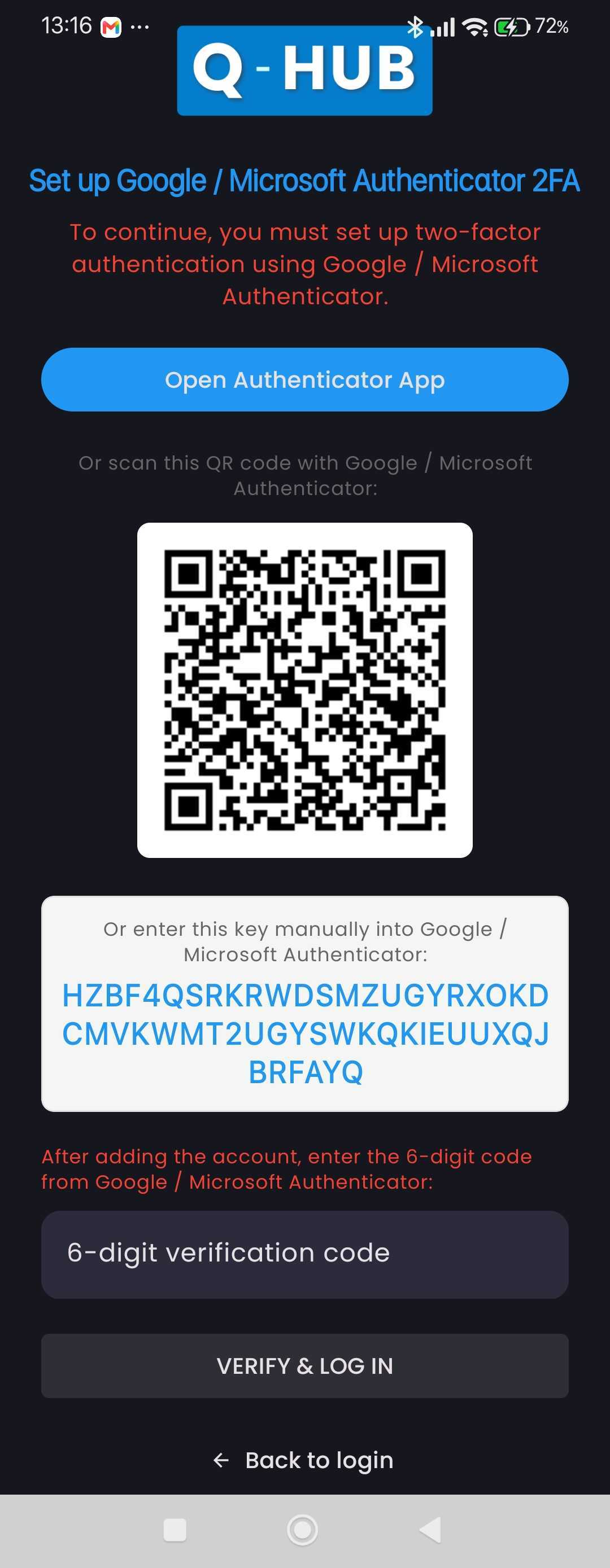
Download an Authenticator App: If you don’t have one, install Google Authenticator or Microsoft Authenticator from your device's App Store or Play Store.
Link the App:
Tap the "Open Authenticator App" button on the setup screen. This will attempt to open and configure your authenticator app automatically.
", and paste the key.
Verify the Code:
Copy the 6-digit code generated by the authenticator app.
Return to the QHub app, enter the code, and tap Verify.
[!TIP] Keep a secure backup of your Authenticator App configuration so you do not lose access if you change your phone.
Option B: Email Verification
If you prefer not to use an app, you can have security codes sent to your email.
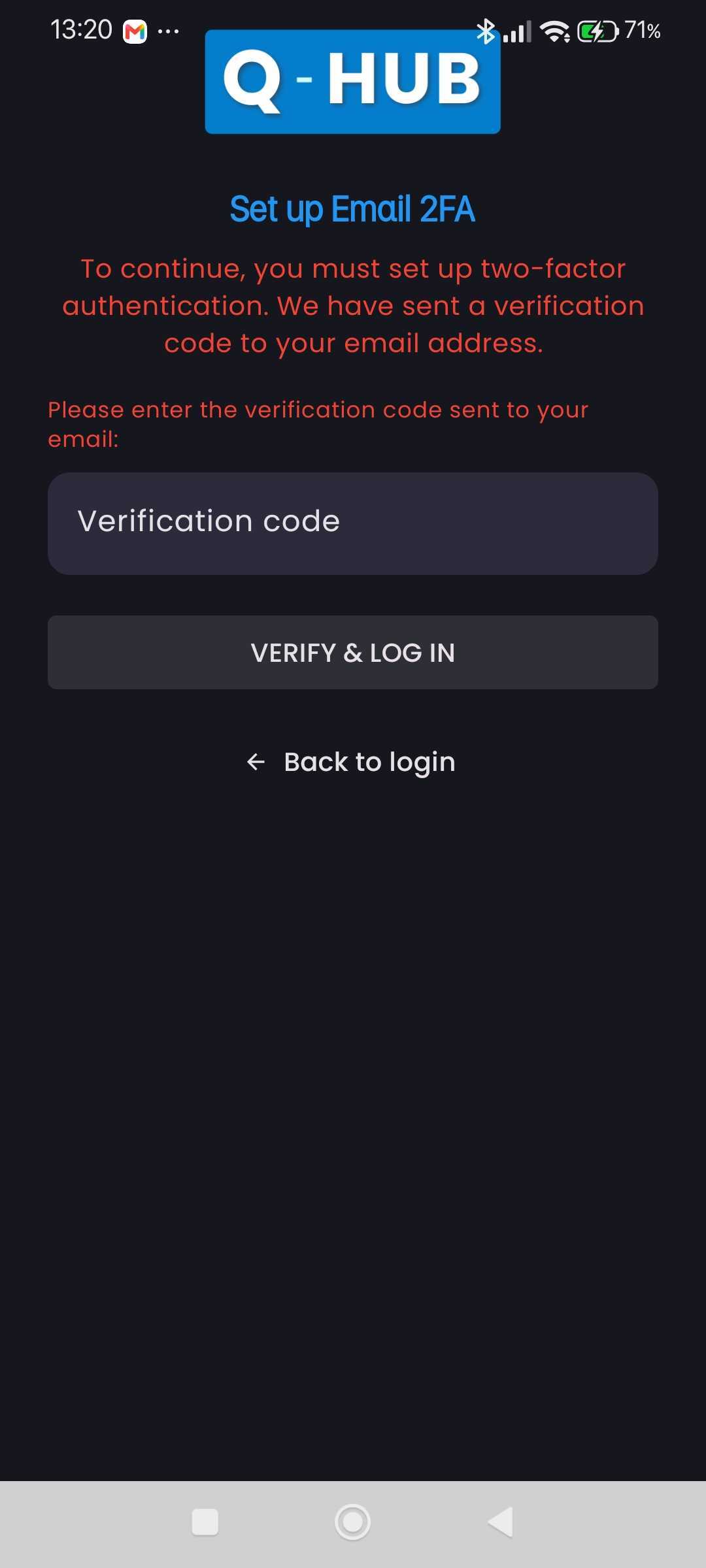
Perform normal login.
Check your registered email inbox for a message from QHub containing a One-Time Passcode (OTP).
Copy the passcode, return to QHub, enter it, and tap Verify.
[!NOTE] If you do not see the email within 2 minutes, check your spam/junk folder and verify that you are checking the correct email address.
Option C: Passkey (Biometrics / Face ID / Touch ID)
Passkeys allow you to sign in securely using your face, fingerprint, or device lock screen PIN/pattern.
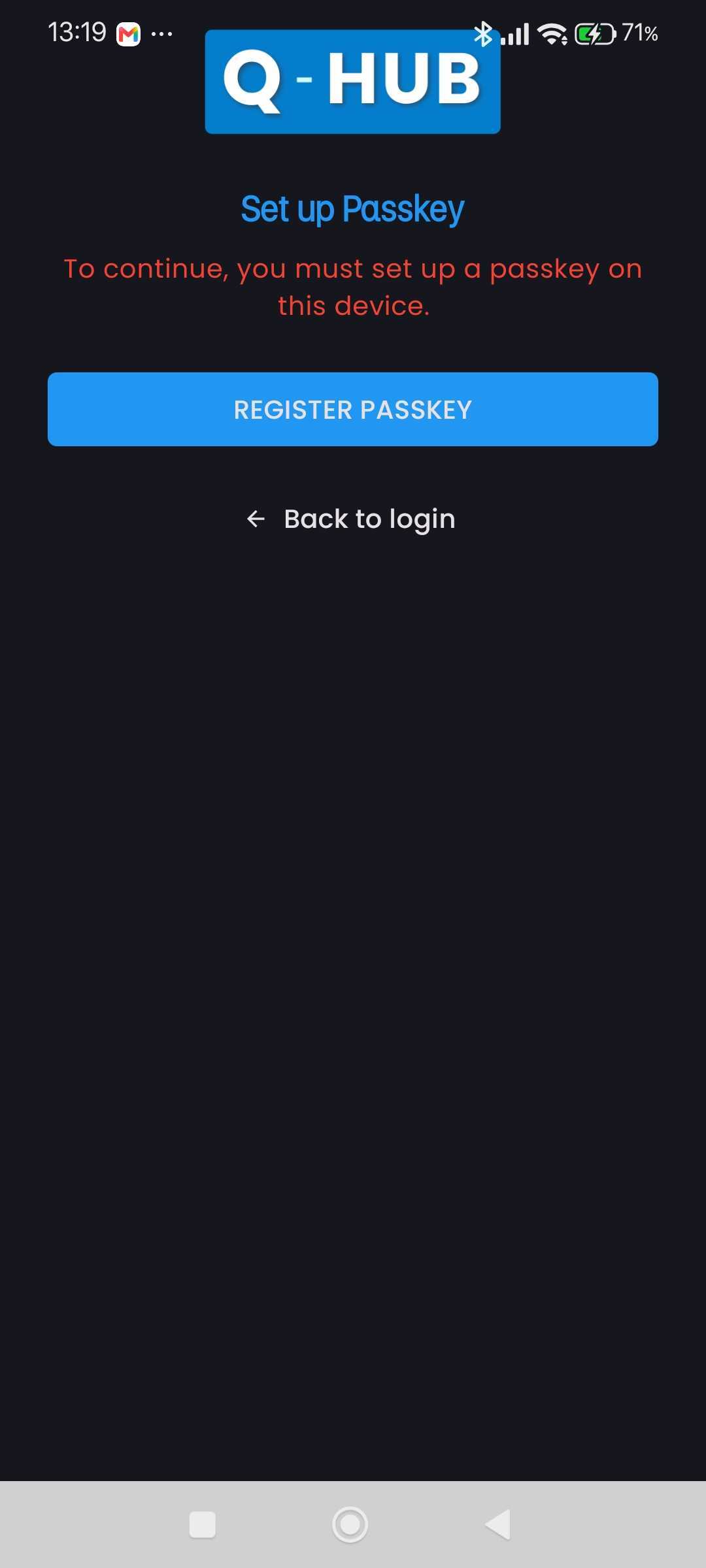
Press Register Passkey on the screen after normal login.
Confirm the prompt from your device to register QHub with your local credential manager (e.g., iCloud Keychain on Apple devices or Google Password Manager on Android).
Authenticate using your Face ID, Touch ID, or lock screen passcode.
Your passkey is now registered, and you're ready to log in!
[!WARNING] Android devices must run Android 12 (API level 31) or higher to support Passkeys. If your device is running an older version of Android, this option will be unavailable, and you should choose an alternative method.
Option D: Authy
Due to mobile platform constraints, setup for Authy must be completed via the QHub Web Portal.
Select Authy on the setup screen.
You will see an alert redirecting you to the Web Portal.
Open the web link, log in, and follow the instructions to set up Authy.
Once completed on the web, you can use the Authy app to log in on your mobile device.
How to Log In Using 2FA
Once 2FA is set up, the login process begins with your standard credentials or SSO. After successful primary authentication, the system will prompt you for your second factor based on your setup.
Standard Login: Enter your email and password on the login screen or use SSO and proceed.
2FA Challenge: Upon successful login, the 2FA dialog will appear. The next step depends on your configured method:
Flow A: If Passkey is Setup
Your device will automatically prompt you for your registered biometric (Face ID / Touch ID) or device PIN.
Complete the biometric scan or enter your PIN.
Once verified, you are immediately logged in.
Flow B: If Authenticator, Authy, or Email is Setup
You will see an input to enter code from the app setup
Retrieve your verification code:
For Authenticator or Authy: Open the respective app and copy the current 6-digit code for QHub.
For Email: Check your inbox for the latest login code.
Enter the 6-digit code in the QHub verification box.
Tap Verify to complete the login.
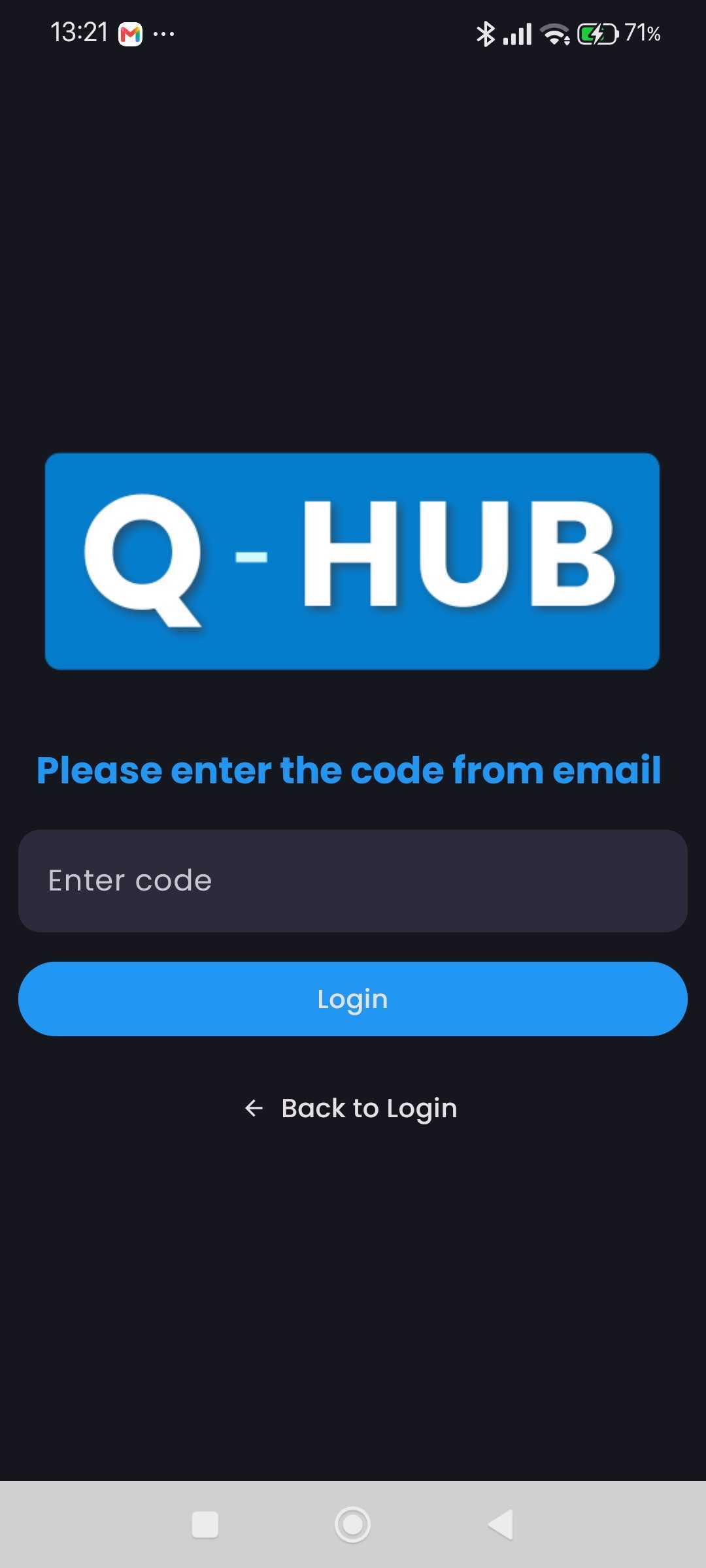
Enter the 6-digit code from your email to complete two-factor authentication in Q-Hub.
[!NOTE] If company’s 2fa method is changed, and it applies to you, you will be logged out immediately from the app.