
 Help Centre
How to mass upload your users
How to upload users
Follow the below instructions
Access the Admin Panel
Go to the top-right corner of your app.
Click on your User Icon.
Select Admin Panel.
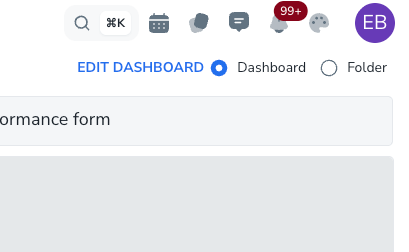
If you don’t see the Admin panel you will not be able to do this.
Go to the user tab
On the left hand side of the page > click the “Users tab"
Then click the upload icon.
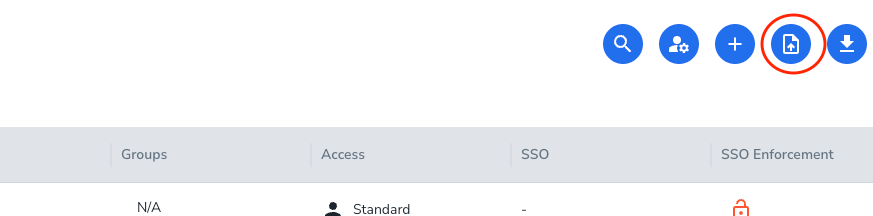
Download the sample sheet
Download the sample sheet, this will be pre-filled with some example users.
noteFor most companies, you will only need to fill in the following columns;
First name
Last name
Email
Job role
User type - Portal (most users will be portal users)
For most companies, you will only need to fill in the following columns;
First name
Last name
Email
Job role
User type - Portal (most users will be portal users)
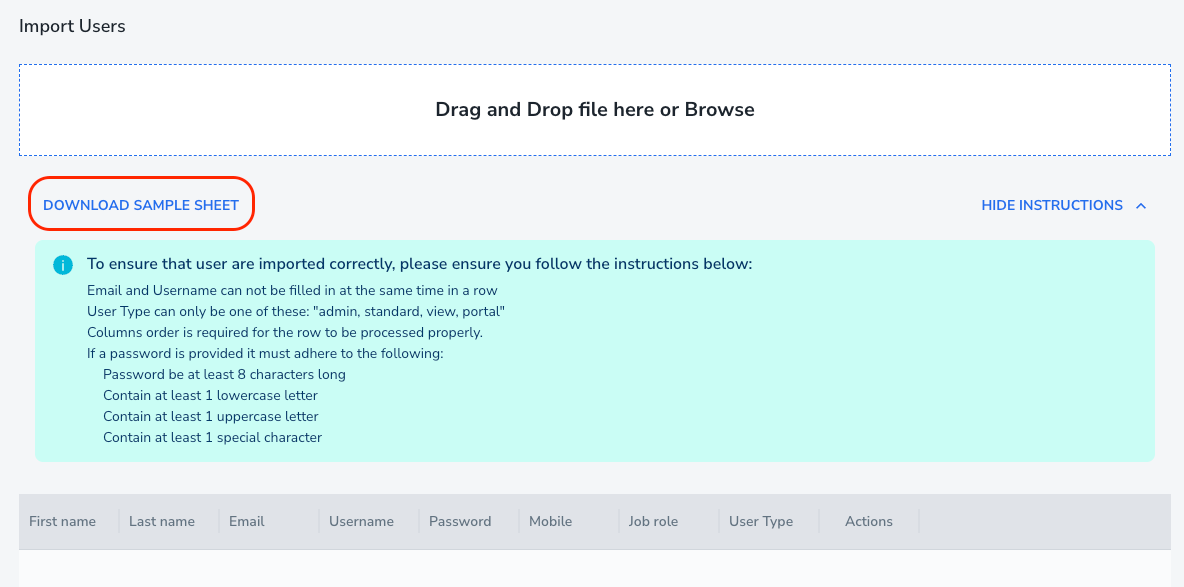
Once you have filled in your users, save the file, then drag it into the import user sections.
The system will highlight red rows if the users already exist or it detects a problem.
Proceed and upload your users
Now you can click the upload button and your users will be uploaded.
ONCE YOU CLICK UPLOAD, YOUR USERS WILL RECEIVE AN EMAIL 📧
They will need to click on the email > and click the authentication button.
Considerations
If your company has SSO settings applied, when the user goes through to the authentication process, they will automatically be directed to the SSO user onboarding flow.
If no SSO rules apply - they will be asked to authenticate their account and create a password.
We suggest always applying SSO
Common problems
Issue: People didn’t receive an email?
Causes:
You have not whitelisted Q-Hubs email
The email has gone into spam
The email may have been accidentally deleted
Solutions:
Ensure Q-Hub emails are not quarantined by your email provider
Ensure Q-Hub is whitelisted
Check spam inbox
If you still cannot see the emails, please contact Q-Hub support.
If you still cannot see the emails, please contact Q-Hub support.
Issue: Link opens an error page or page that says - Link is invalid
Causes:
Link has expired
Configuration issue on Q-Hub side
Solutions:
Manually delete the user, the add the user manually again.
Contact Q-hub support