
 Help Centre
Fixing "Need admin approval" Error for Q-HUB: Methods for Granting Admin Consent
How to Fix "Need admin approval" for Q-HUB
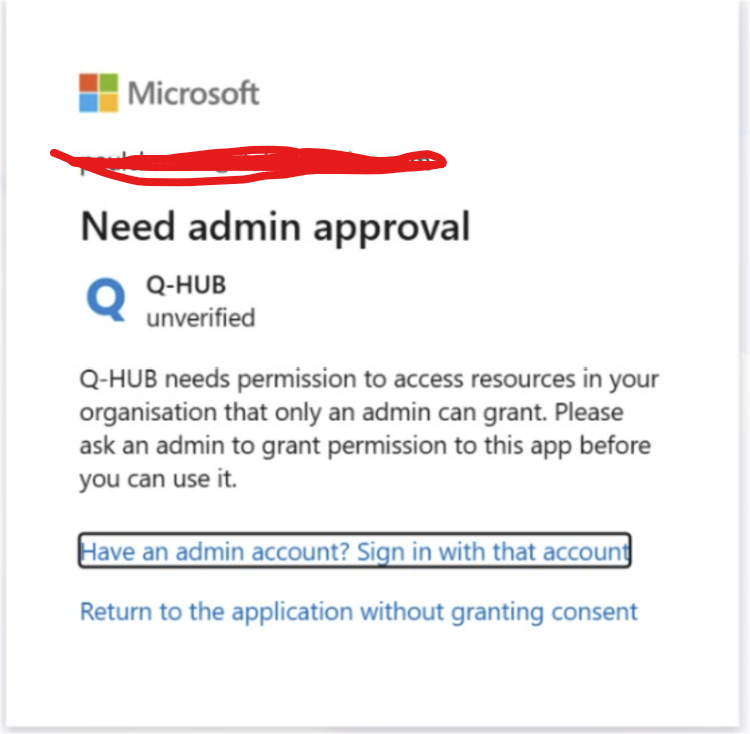
This screen appears because Q-HUB is asking for permissions that regular users cannot approve themselves — only an administrator of your Microsoft 365 / Entra ID organization can grant them.
Choose the method that best matches your situation:
# | Method | Who can do it | Difficulty | Recommended for |
|---|---|---|---|---|
1 | Ask IT/Global Admin to grant admin consent | Company IT admin | ★☆☆ | Most common & fastest solution |
2 | Admin enables "Users can request admin consent" workflow | Company IT admin | ★★☆ | Good long-term solution |
3 | Admin changes user consent settings (allows more user consents) | Company IT admin | ★★☆ | Only if organization policy allows |
Method 1 – Quickest: Ask admin to grant consent (recommended)
Send this message to your IT department / Microsoft 365 Global Admin / Entra ID Administrator:
Hi, When I try to log in to Q-HUB, I get the error: "Need admin approval" – Q-HUB (unverified) needs permission to access resources that only an admin can grant.
Could you please grant admin consent for the application Q-HUB in our tenant?
They usually do it this way: • Go to
• → Identity → Applications → Enterprise applications • Search for Q-HUB • Click → Permissions • Click Grant admin consent for [Your Company Name]Thank you very much!
After the admin grants consent → wait 1–5 minutes, refresh the page and try logging in to Q-HUB again.
Method 2 – Admin enables "Admin Consent Requests" workflow (best long-term solution)
Your admin should do the following:
Go to →
Navigate to: Identity → Applications → Enterprise applications
Click Consent and permissions → Admin consent settings
Turn ON the option: Users can request admin consent to apps they are unable to consent to
Add reviewers (usually Global Admins, Cloud Application Admins or specific people)
Save changes
After this setting is enabled: → Next time you see the error → you should see "Request admin approval" button → You can send a request directly → admin will receive notification and can approve
Method 3 – (Less secure) Allow users to consent to more apps
Warning: many companies do NOT allow this for security reasons.
Admin steps:
- → Identity → Applications → Enterprise applications
Consent and permissions → User consent settings
Choose: Allow user consent for apps from verified publishers (or even more permissive option)
Save
After that many (but not all) applications stop showing "Need admin approval".
Quick Summary – What usually works fastest
→ Forward the screenshot + short message from Method 1 to your IT team → Most companies solve this in 2–10 minutes after admin grants consent